Showing posts with label Remote. Show all posts

Enable Virtual Wi-Fi on Windows 7

Window 7 comes with an attractive capability of converting your laptop or PC into a Wi-Fi hotspot. But there are some problems that are associated with its implementation.
Assuming that your wireless card supports this functionality and all the necessary drivers have been installed on your system, another icon will appear in the network connection by the name of "Wireless Network Connection 2, Microsoft Virtual Wi-Fi Miniport adapter".

The main problem is that you cannot configure it as you perform in the GUI mode on the other connections. Thus you have to use a command line in order to use it.

Steps:-

  1. Launch the command prompt as an administrator.
  2. Type the command as C:\Windows\system32>netsh wlan set hostednetwork mode=allow ssid=MYWIFI key=passwrd
  3. Replace MYWIFI with the desired name that you want and repeat this step for passwrd also.
  4. The output should be similar to the following.
  5. The hosted network mode has been set to allow.
  6. The SSID of the hosted network has been successfully changed.
  7. The user key passphrase of the hosted network has been successfully changed.
  8. To start the network type the command as "C:\Windows\system32>netsh wlan start hostednetwork". The output should be similar to the following
    The hosted network started
  9. The network has been started and can be shared among multiple devices.


Enable Port Forwarding on Router

NAT

I am making an assumption that you are doing nat overload. If this is
the case, then you would simply add

ip nat inside source static udp 192.168.1.1 43398 65.65.65.65 43398

in the above example, 192.168.1.1 is the inside address of the device
you want to port forwarded to and 65.65.65.65 is a public ip address
that you have available (it could even be the ip address of the outside
interface.

ACCESS LIST

To open Remote Desktop Connection port 3389. You need an access list on the router.

access-list 101 permit ip 199.99.99.99 0.0.0.0 192.168.1.2 0.0.0.0 eq 3389
access-list 101 deny ip 199.99.99.99 0.0.0.0 192.168.1.0 0.0.0.255
access-list 101 permit any any

Change the 199 address to your public IP and the 192 to your LAN IP on the first listing. Leave the rest alone.

If you want to allow the port 43398 to be send out

You can use extended access list and implement it on the incomming and outgoing interface of your router

access-list 101 permit udp 192.168.1.1 eq 43398 65.65.65.65 43398
access-list 101 permit udp 65.65.65.65 eq 43398 192.168.1.1 43398


for both direction as router needs access to be defined for both direction.


Password Remember for Map Network Drive

5:33 PM by Yash Kalra 0 comments

Create a Batch file with this line:

net use DRIVE: \\SERVERNAME\FOLDERNAME PASSWORD /user:USERNAME /persistent:yes

then put this file into startup!!


Enable Multiple Concurrent Remote Desktop Connections or Sessions in Windows XP

Windows XP Professional and Windows XP Media Center Edition (MCE) has Remote Desktop (RDP) service that allows the computer to be remotely connected, accessed and controlled from another computer or host. However, Windows XP machine only allows one concurrent remote desktop connection from a single user been connected to it with no multiple remote desktop sessions or connections support.

Whenever there is a remote user who user Remote Desktop Connection (RDC) client to connect to a Windows XP host, the local user is disconnected with the local console screen locked, with or without his or her permission. Remote Desktop, unlike Terminal Server Services in Windows 2000, Server 2003 and Server 2008, is designed for single user use only, no matter it's local or remote user.

Here's a hack to unlock the single user limitation and enable multiple concurrent remote desktop connection sessions support in Windows XP Professional and Media Center Edition, using a either a patched termserv.dll or old patched cracked termserv.dll build version version 5.1.2600.2055, so that unlimited users can simultaneously connect to a computer via Remote Desktop.

  1. Download a copy of patched termsrv.dll (in ZIP file) which has the Remote Desktop connection limitation deactivated for your version of Windows XP:

    Windows XP RTM, SP1 and SP2: termsrv.dll (version 5.1.2600.2055)
    Windows XP SP2: termsrv.dll (version 5.1.2600.2180)
    Windows XP SP3: termsrv.dll (version 5.1.2600.5512)

    For information, the termsrv.dll patch normally has the following HEX code bits overwritten with following value:

    00022A17: 74 75
    00022A69: 7F 90
    00022A6A: 16 90

  2. Restart the computer and boot info Safe Mode by pressing F8 during initial boot up and select Safe Mode. This step is only required if you're currently running Windows Terminal Services or Remote Desktop service, and System File Protection has to be skipped and bypassed, else it will prompt the following error message to restore the original termsrv.dll.

    Windows File Protection

  3. Go to %windir%\System32 and make a backup copy (or rename) the termsrv.dll.
  4. Rename or delete the termserv.dll in the %windir%\System32\dllcache folder.
  5. Copy the downloaded termsrv.dll into %windir%\System32, %windir%\ServicePackFiles\i386 (if exist) and %windir%\System32\dllcache.
  6. Then download and run the ts_multiple_sessions.bat (in ZIP file) to merge the registry value into registery, or you can run Registry Editor to manually add the following registry value:

    [HKEY_LOCAL_MACHINE\SYSTEM\ControlSet001\Control\Terminal Server\Licensing Core]
    "EnableConcurrentSessions"=dword:00000001

    [HKEY_LOCAL_MACHINE\SOFTWARE\Microsoft\Windows NT\CurrentVersion\Winlogon]
    "EnableConcurrentSessions"=dword:00000001

    [HKEY_LOCAL_MACHINE\SOFTWARE\Microsoft\Windows NT\CurrentVersion\Winlogon]
    "AllowMultipleTSSessions"=dword:00000001

  7. Click on Start Menu -> Run command and type gpedit.msc, follow by Enter to open up the Group Policy Editor.
  8. Navigate to Computer Configuration -> Administrative Templates -> Windows Components -> Terminal Services.
  9. Enable Limit Number of Connections and set the number of connections to 3 (or more). The setting allows more than one users to use the computer and logged on at the same time.
  10. Ensure the Remote Desktop is enabled in System Properties' Remote tab by selecting the radio button for Allow users to connect remotely to this computer.
  11. Enable and turn on Fast User Switching in Control Panel -> User Accounts -> Change the way users log on or off.
  12. Restart the computer normally.

Note that if you cannot replace or overwrite termserv.dll with access denied or file in use error, turn off the "Termine Services" in "Services" control panel of "Administrator Tools". Besides, each connecting physical connections must have their own user account in the target host, and must authenticate with corresponding own user name and password credential.

To uninstall and revert back to original termsrv.dll, simply delete the patched version, and rename the backup copy back to "termsrv.dll". You probably have to do it in Safe Mode if the Terminal Services is enabled and running.

If the Windows XP computer is connected to a domain on local networks, Windows will set the value of the regkey "AllowMultipleTSSessions" to "0″ every time the computer is restarted. To ensure that multiple or unlimited Remote Desktop connection sessions is allowed in AD domain environment, the value data for "AllowMultipleTSSessions" has to be set to "1″ on each system startup. To change the value, simply rerun the ts_multiple_sessions.bat every time the computer is started. Alternatively, put the ts_multiple_sessions.bat at C:\Documents and Settings\All Users\Start Menu\Programs\Startup folder so that it will be automatically run on first user with administrative privileges that logs on to the desktop. Another workaround is to install additional service or define a sub-key in HKEY_LOCAL_MACHINE\SOFTWARE\Microsoft\Windows\CurrentVersion\Run registry branch that run the registry batch file automatically on boot up, and this is useful if the computer won't be logged on by anybody, but still requires the hack to allow unlimited Remote Desktop users to work.

Another issue is that if user closes the remote connection instead of logging off, when he or she tries to log back in, an error message related to TCP/IP event ID 4226 may occur. To resolve the issue, download and apply the Windows XP TCP/IP connection limit and Event ID 4226 patch, and set the connections to at least 50.


Enable and Allow Windows XP and Vista Remote Desktop Login Without Password (or With Blank Null Password)

4:30 PM by Yash Kalra 0 comments

When attempting to connect or establish Remote Desktop connection to a remote Windows XP or Windows Vista computer in order to remotely logon to the machine, the log on may be rejected with Remote Desktop client returns one of the following error messages.

Your credentials did not work.

or,

Unable to log you on because of an account restriction.

or,

An authentication error has occurred.
The Local Security Authority cannot be contacted

Remote Computer: xxxxx

By default, Windows XP and Windows Vista does not allow nor permit user account without password set or user name with blank (null) password to connect and log in remotely via Remote Desktop Protocol (RDP).

The obvious resolution is definitely to create and set a password for the user account that requires to logon remotely to a computer via Remote Desktop, and it's recommended for security reason too. However, user who for some reason such as for the purpose of convenient, and thus unable or cannot assign a password to the user account, can use the following workaround to allow user to login remotely via Remote Desktop Connection (RDP) client to Windows XP and Windows Vista PC.

How to Enable Remote Login via Blank Passwords using Local Security Policy or Group Policy Editor

The configuration to enable null (blank) passwords logon must be done on the host computer, i.e. the remote computer to remotely controlled. To configure the Remote Desktop host computer to accept user name with blank password, go to Control Panel -> Administrative Tools (Under System and Maintenance in Windows Vista) -> Local Security Policy. Alternatively, run GPEdit.msc (Group Policy Editor).

Then, expand Security Policies -> Local Securities -> Security Options (for user using Group Policy Editor or GPEdit.msc, expand Local Computer Policy -> Computer Configuration -> Windows Settings -> Security Settings -> Local Policies -> Security Options). Locate Accounts: Limit local account use of blank passwords to console logon only policy, and set its value to Disabled.

Allow Remote Desktop Connection via User with Blank Passwords

Once disabled, user account with blank or null passwords can now login remotely instead of just able to do so via local console.

How to Configure Blank Passwords Allowed for Remote Log On via Registry

Windows XP and Windows Vista stores the value of the policy set above in a registry key named "LimitBlankPasswordUse". To unlock the limitation of cannot establish Remote Desktop logon with user account without a password, simply set the value data for LimitBlankPasswordUse to 0 (so that there is no limit on blank or null password use), as according to the code below. Alternatively, copy and paste the following text to a text file, and save with a .reg extension. Then run the .reg file to merge the value to registry.

Windows Registry Editor Version 5.00

[HKEY_LOCAL_MACHINE\SYSTEM\ControlSet001\Control\Lsa]
"LimitBlankPasswordUse"=dword:00000000

[HKEY_LOCAL_MACHINE\SYSTEM\CurrentControlSet\Control\Lsa]
"LimitBlankPasswordUse"=dword:00000000

For convenient, two registry files have been created and available for free download, which will enable or disable usage of blank password (or absent of password) to login remotely. Download BlankPasswords.zip and run EnableBlankPasswords.reg to enable or DisableBlankPasswords.reg to disable remote login via blank password.

The trick works on both 32-bit and 64-bit operating systems.


How to Remotely Enable Remote Desktop (Terminal Services or RDP) via Registry in Windows 2000/XP/2000/Vista/2008

4:16 PM by Yash Kalra 0 comments

Remote Desktop or RDP service is a free yet useful tool to remotely log on to remote computer and gain full access and privileges as if user is in front of local console. Remote Desktop is also known as Terminal Services. It's useful if the server, or PC is located miles away in remote location, and frequent trip to the site to troubleshoot, configure or manage the system is not a viable option.

Although most versions of Windows operating system such as Windows 2000, 2003, 2008, XP and Vista does come packaged with Remote Desktop, however it's disabled by default. Turning on and enabling the Remote Desktop via local console is easy, where Microsoft provides similar GUI (graphical user interface) in all editions of Windows (refer to guide on enable Remote Desktop in Vista).

However, if an off-site server needs to be access via Remote Desktop Connection (RDC) client immediately, yet the Remote Desktop is not enabled on the server, then it will be a headache. Luckily it's possible to remotely enable and turn of the Remote Desktop service on a remote PC or server by remotely editing its registry.

To remotely enable Remote Desktop on another computer, follow these steps:

  1. Login to the workstation with administrator credentials.
  2. Run Registry Editor (regedit).
  3. Click on File menu.
  4. Select the Connect Network Registry in the pull down menu.

    Connect to Remote Computer Registry

  5. A "Select Computer" dialog search box is opened. Type the host name of the remote computer in the text box, or browse Active Directory to locate the remote server, or click on "Advanced" button to search for the remote computer.

    Remote Server to Enable Remote Desktop

  6. Click OK after the remote computer is selected. A node for the remote computer network registry will be displayed in the Registry Editor with HKEY_LOCAL_MACHINE (HKLM) and HKEY_USERS (HKU) hives.

    Registry of Remote Computer

  7. Navigate to the following registry key for the remote computer:

    HKEY_LOCAL_MACHINE\SYSTEM\CurrentControlSet\Control\Terminal Server

  8. In the right pane, locate a REG_DWORD value named fDenyTSConnection. Double-click on fDenyTSConnection and change the value data from 1 (Remote Desktop disabled) to 0 (Remote Desktop enabled).

    Enable Remote Desktop Remotely with fDenyTSConnections Registry

  9. Reboot the remote machine by issuing the following command in Command Prompt:

    shutdown -m \\hostname -r

    Replace hostname with the actual computer name of the remote host.

  10. Remote Desktop for the remote computer has been enabled, and listening on default Remote Desktop port for any incoming Remote Desktop Connection. For security reason, you may want to consider changing the Remote Desktop listening port.

.


Remotely Enable Remote Desktop on Windows XP / 2003

With Remote Desktop on Windows XP Professional or Windows Server 2003 (in Windows 2000 Advanced Server, this feature was called Terminal Services in Remote Administration Mode), you can have access to a Windows session that is running on your computer when you are at another computer.

Create the new RDP listening port via the registry:
Run REGEDIT on your XP workstation or on your Windows 2000/2003 Server.
Click on File, then choose "Connect Network Registry".

In the Select Computer search box either browse Active Directory to locate the remote server, or type its name in the dialog box.

Click Ok.
In the remote machine's registry browse to the following key:

HKLM\SYSTEM\CurrentControlSet\Control\Terminal Server
Under the Terminal Server key find the value named fDenyTSConnections (REG_DWORD). Change the value data from 1 (Remote Desktop disabled) to 0 (Remote Desktop enabled).

Click Ok.
Close Regedit.
Reboot the remote machine for the change to take effect. You can easily do so by opening a command prompt and typing the following command:

shutdown -m \\srv1 -r

After the remote machine reboots, Remote Desktop will be enabled on it. To test this from your workstation, open Start -> All Programs -> Accessories -> Communications -> Remote Desktop Connection. You can also type mstsc in the Run command.


Enable Remote Desktop on Windows XP / 2003

4:45 PM by Yash Kalra 0 comments

With Remote Desktop on Windows XP Professional or Windows Server 2003 (in Windows 2000 Advanced Server, this feature was called Terminal Services in Remote Administration Mode), you can have access to a Windows session that is running on your computer when you are at another computer.

To enable the RDP service on Windows Server 2003 follow the next steps:

Go to Control Panel.

Click System.

Go to the Remote tab.

Select the "Allow users to connect remotely to this computer" box.

Click Ok.

Note: In order for the RDP connection to work you need to allow TCP port 3389 connections to the server. You also need the name and password of one of the local (or domain) administrators, because this type of connection is only allowed for administrative accounts.


Securing RDP/Terminal Services Communications

4:38 PM by Yash Kalra 0 comments

When Microsoft Windows 2000 was released many years ago, administrators were blessed with new functionality called Terminal Services which easily allowed remote administration of a server. The functionality or the concept was actually not new. Administrators of Windows operating systems as well as other platforms are plenty familiar with the concept of remote administration. For Windows and some many other platforms, remote administration was accomplished through the use of 3rd party tools which meant the purchase of an extra remote administration tool license for every server that is deployed. While the licensing costs generally weren't terrible, especially for what is gained in return (ease of remote administration, working from home in your pajamas while smoking a cigar like I'm doing now), the costs could add up quickly for infrastructures with large numbers of servers to remotely administrate. What was new, however, was that Windows 2000 introduced a remote administration tool that was built into the OS with no bolt-on licensing costs needed. The tool was called Terminal Services and other than a few minor quirks that it had such as software installation problems in Terminal Services, drive letters not dynamically added/removed without a logoff/logon, not a true console0, etc., it was a God send and still is to this day.

The release of Windows XP brought us an overhauled remote administration tool. The Terminal Services client was still a viable tool but the version in Windows XP called Remote Desktop Connection was, well, cooler. In typical Microsoft fashion, the new tool brought with it some added functionality to make administrator's lives even easier.

Fast forward to the year 2006. A new version of the Remote Desktop Connection (5.2) had been released for download from Microsoft which added the ability for more secure communications. Then finally Windows Server 2003 Service Pack 1 was released which delivered a slightly updated version of the tool (5.2.3790.1830) which allows the initiating client to require secure communication with a remote server which is what I wanted to write about a little today. Today we live in a world where security is held in much higher regard. Sure it was talked about in the 1990s and for those who are old school certification nuts, you probably even got a few exam questions on security way back when, but today with the events of 9/11, terrorists, internet availability and anonymity, wireless networks, and computer hacking, maintaining a secure network has really come to the forefront as a hot topic. This writing will showcase a method to securing communications between a server and a client using the Remote Desktop Connection and the Remote Desktop Protocol (RDP).

In the example that follows, we will have a Windows client named client.contoso.com and a server named server.contoso.com which is running Windows Server 2003 SP1. Neither machine is a member of a domain; both are running as members of a workgroup. Our example will make use of digitally signed certificates using with server.contoso.com being a stand alone root CA. In a practical environment, not every server that you RDP to needs to be running a CA, in fact, most servers won't be running a CA, but since we only have two machines in our example, I chose the server to run the CA services. In your environment, you may already have a stand-alone or enterprise CA. Either can be used to issue certificates to the machines in which you wish to establish a secure RDP session with. It is assumed that by this point, you already have a CA in place in your infrastructure or you are making use of an external CA. You also have configured the server to receive remote desktop connections. In our example, we have obtained a certificate and installed it already on server.contoso.com.

First we configure the server. Under Administrative Tools, open Terminal Services Configuration. Double click RDP-TCP to configure the properties of Terminal Services using the RDP protocol. Under the general tab to the right of the word certificate, click Edit. Choose the installed certificate that you wish to associate with the Terminal Services connection over RDP:

Back under the general tab, you will now be able to choose SSL for the security layer. This is what ultimately requires the use of certificates for the RDP communication on the server side. Take a quick look at the encryption level setting. Choices are client compatible, high, or FIPS. Client compatible means enforce the highest level of encryption that the connecting client supports. High means enforce the highest level of encryption that the server supports. FIPS means enforce FIPS encryption on both the server and the client. FIPS is government approved level of encryption.

Now let's move over to the client. The first thing we need to is ensure that the client trusts the CA chain that the server's certificate was issued from. If this has not been done already, I will quickly walk you through the steps involved with a stand-alone CA. On the client, open a web browser and go to http://servername/certsrv/. Click Download a CA certificate, certificate chain, or CRL:

Choose Install this CA certificate chain:

Choose Yes:

Choose Yes:

At this point you can close the web browser on the client machine:

Ensure that on the client, Remote Desktop Connection version 5.2.3790.1830 is installed (read Download RDP 5.2). If it is not installed, you can install it from a server running Windows Server 2003 SP1. The source files are located on the server in c:'windows'system32'clients'tsclient'.

Open the Remote Desktop Connection client. Click on the Options button so that you can view all configurable options. Click on the Security tab. Choose Require Authentication in the pull down box.

Click on the General tab. Enter the FQDN name of the server you will be connecting to. It is important here to enter the FQDN name:

You will receive the following warning. Click the button labeled View Certificate:

Click Install Certificate:

Click Next:

Click Next:

Click Finish:

Click Yes:

Click OK:

Click OK and you the Remote Desktop Connection will close:

Now that the certificate is installed on the client, we may connect. Remember to use the FQDN here because that is what is contained in the server's certificate:

We have now established a secure encrypted Remote Desktop Connection from the client to the server:

Clicking on the small padlock at the top of the screen ensures are secure connection by displaying the certificate that is in use:


Install RDP Client via GPO

4:30 PM by Yash Kalra 0 comments

How can I install the Remote Desktop Connection 5.2 client by use of GPO (Group Policy Objects)?

RDP (Remote Desktop Protocol) client is the client-side component of the Terminal Server connection. In order to allow a client to connect to a TS, the client needs to install the RDP client on their machine.

The RDP client can be installed by use of one of 3 methods:

  • Local manual installation

  • Login script initiated script

  • Group Policy initiated installation

In this article we will focus on the 3rd option. Naturally, the steps described here will also work for any other software installation, as long as it is packaged as an .MSI file.

System requirements

In order to install (anything) via GPO you will need the following:

  • Active Directory in place (Windows 2000/2003 AD)

  • Client machines that are part of the domain

  • Client machines running W2K and beyond.

  • Proper administrative rights

Note: In case you cannot install the RDP client on the computer you're working at (in situations where you don't have the necessary rights for example) you can still connect to the TS by using the Remote Desktop Web Connection component. Read Download Remote Desktop Web Connection for Windows Server 2003 and Install Remote Desktop Web Connection on Windows Server 2003 for more info.

Obtaining the RDP client installation file

One of the best TS clients is the Microsoft RDP client (others exist, but we won't discuss them here). The RDP client was first introduced in Windows XP (version 5.1), and was later upgraded (version 5.2 in SP2 and Windows Server 2003). Last year RDP client was upgraded to the latest version -

(Note the new Security tab and the version number)

You can get the new RDP version from any Windows Server 2003 SP1 installation - Look for it in the %systemroot%system32clientstsclient folder.

If you don't have a Windows Server 2003 computer accessible, you can also download the file from the Microsoft's site (Download RDP 5.2 (Old Version)), but after downloading it you will need to extract its content.

Extract the msrdpcli.msi file from the archive

As said above, after obtaining the file called msrdpcli.exe from Microsoft's website you will now need to extract the files from it. In order to do so you should install some 3rd-party extracting tool such as WinZip or WinRAR.

Lamer note: You do NOT need to perform the following action if the file you've obtained is already named msrdpcli.msi.

Navigate to the folder where you've placed the msrdpcli.exe file, and right-click it:

Choose either the WinZip or the WinRAR context menu and select the command that'll extract the files from the archive.

You will find a few files that were extracted from the archive. We do not need them for this guide, however you do need to copy the one file called msrdpcli.msi. The file's size and attributes may vary as there are at least 3 versions of the RDP client. The latest version that can be freely downloaded from Microsoft's site is v5.2.3790.0. This version's size is 922kb.

In case you've copied the msrdpcli.msi file directly from the %systemroot%system32clientstsclient folder on a Post SP1 Windows Server 2003 computer, the file's version will be v5.2.3790.1830 and its size will be 959kb. This is currently the latest version available, and it can also be obtained from the Download RDP 5.2 page.

Whatever version you're using, just copy it. We will need it in a second.

Creating the installation point

You will need to create a network share and place the msrdpcli.msi file in it. You could do so on one of your servers (you could use one of your Domain Controllers, depending on the number of clients on your network).

Let's assume you're using one server called zeus and that the network share you'll create will be located on that server. Let's assume that server is also a Domain Controller.

  1. Open Windows Explorer, navigate to one of your partitions, create a folder (I'll call it RDP Client, just for the purpose of this article).
  2. Right-click that folder and choose Sharing and Security.

  1. Give the share a name. It's best to use a short name of less than 8 characters, but you can use any name you want. You can also add a $ sign after the name in order to hide the share from curious eyes (note that this however won't protect the share's content, it will only hide it from unknowing users). I've named the share RDP_Client$.

  1. Grant the Everyone group Read access for the share. On Windows Server 2003 this is the default. You do not need more than that in order for the users to be able to install the software.
  2. Click Ok all the way out.
  3. Check to see if the share is accessible from the network by typing 'servernamesharename (in our case - 'zeusRDP_Client$). If the share opens in a new window, we're set.
  4. Needless to say, you need to paste the msrdpcli.msi file in that share, duh...

Note that in some cases, with a large network containing many users, one installation point won't be enough. You will then need to use some load balancing method such as DFS (Distributed File System) and replicas of the content inside, but that's for a different article.

Choosing computer account or user account-based installation

The next decision you need to make is whether to install the software on the computers based on the computer's account location, or based upon the user's account location. For example, if in your AD infrastructure you have an OU called Workstations OU, and, OU called Sales OU and a third one called IT OU:

Lets say you decided to configure the software to be installed on all the users in the Sales OU. Then the GPO will need to be linked to the Sales OU, and the software will need to be configured on the User Configuration part of that GPO:

You will now link this GPO to the Sales OU (or to the IT OU, or to both, depending on your choice). If you choose this option, the software can be installed in one of two methods:

  • Published - Which means that it won't be actually installed, the user will need to manually install it from the Add/Remove Programs applet in the Control Panel.
  • Assigned - Which means the software will "seam" to be installed, it will show in the Programs folder on the Start menu, but it won't actually do anything. The first time a user clicks the shortcut, it will automatically be installed.

However, if you choose to install the software for all the computers in the company, and these computers have their computer accounts in the Workstations OU, then you will need to configure the software installation on the Computer Configuration part of that GPO:

As a "bonus" of this option you will also get the added value of installing the software as a mandatory installation to the computer, and it will be installed during the computer's booting, right before the CTRL-ALT-DEL screen appears. That means that software installed to the Computer Configuration part of the GPO can only be Assigned, and not Published, as with the Users Configuration option. However, unlike the Assigned option in the User Configuration, the software will fully install itself and not "wait" for the first use of it by the user.

You will then have to link this GPO to the Workstations OU.

Creating or editing the Group Policy Object (GPO)

You will now need to decide what scope will your GPO cover. For example, will you need to install the software for ALL your users/computers, or just for some of them, according to some internal company logic. Based upon your design you will need to either edit an existing GPO, or create and edit a new one. This GPO will need to be linked to the right OU, or to the entire domain or site, depending on your design. I will not go into this area in this article, perhaps in a future one.

Lets say you need to create a new GPO and want to link the new GPO to the Sales OU:

  1. Open Group Policy Management Console (GPMC). You don't have GPMC yet? Bad boy! Read Download GPMC for more info.
  2. Expand the domain tree, right-click Group Policy Objects, and choose New.

  1. Enter a descriptive name for the new GPO, press Ok.

  1. Right-click the new GPO and select Edit.

  1. In the new GPO editor window select either the Computer Configuration part of the GPO or the User Configuration part of the GPO, depending on the choice you made in the previous step. Expand it, go to Software Settings > Software Installation. Right-Click Software Installation and choose New > Package.

(I chose the User Configuration option)

  1. In the Open window, make sure you manually type in the full network path (UNC path) to the installation point (to remind you, in our case it's 'zeusRDP_Client$). Do NOT make the mistake of browsing to the local location of the file, you MUST provide the network path to the share.

This is where the msrdpcli.msi file is supposed to be waiting for you. Click to select the file, then click Open.

  1. In the Deploy Software window click on the right choice based on the decision you made in the previous step. I chose Assigned.

  1. The new installation package will appear on the right pane.

That's it, you're done.

Now, in order for the new installation to work, you'll need to wait for AD replication to finish (depending on the size of your AD infrastructure, this can take anywhere from a few seconds to a day or two, but assuming you're using 2 or 3 DCs, this'll take a minute or less).

Next, ask your user(s) to reboot their computer. In some cases a refresh of the GPO (gpupdate /force) and/or a logoff will be enough, but we need to make sure.

Ask the user to look for a window saying "Software installation" right before the CTRL-ALT-DEL window appears (in case of a Computer-based installation), or right after it (in case of a User-based installation). Ask them to look for the program in the Start menu.

If something doesn't work right, you can begin to troubleshoot by looking at replication issues, permissions, GPO inheritance and filtering, and at event ids. But that's for a different article.


Use RDP Client to Connect to a Different Port

3:46 PM by Yash Kalra 0 comments

When working with Terminal Server or RDP you have the choice to change the XP RDP 5.1 or 5.2 client connecting port.

If you've changed the listening port on the TS from its' default - 3389 (Change Terminal Server Listening Port)- you'll also need to configure your client to connect to the new port. Changing the connection port on the RDP clients is quite easy.

To Alter the Port on the client side:
1. Go to the Start menu and click on Run.
2. On the Run menu type MSTSC and click Enter.
3. In the RDP window, in the Computer box, scroll to the computer name or IP to which you wish to connect.
4. Add a ":Port" (without the quotes) where "Port" is the decimal value of the destination port.

5. Press Connect.

Another method of connecting to a different port that default is to run the MSTSC command with the required command line parameters:

/v:ServerName[:Port]

For example:

MSTSC /v:192.168.0.150:3390

Note: To use RDP on computers with operating systems other than Windows XP/2003 you will first need to install the RDP client


How can I add a new RDP listening port to Windows 2000/2003 Terminal Server?

3:38 PM by Yash Kalra 0 comments

You cannot add a new listening port to your Terminal Server via the GUI (Terminal Server Configuration in Administrative Tools) because there is no option for changing the listening port via the GUI.

Create the new RDP listening port via the registry.

Run Regedit.exe on your Terminal Server.
Navigate to the following key:

HKEY_LOCAL_MACHINE\SYSTEM\CurrentControlSet\Control\Terminal Server\WinStations\RDP-Tcp

Export the entire key to a .REG file by selecting the key (click on it...) and going to File > Export.

Give it any name you want.
Edit the .REG file you've just created and change the name of the key at the 3rd line of the file to something like:

HKEY_LOCAL_MACHINE\SYSTEM\CurrentControlSet\Control\Terminal Server\WinStations\RDP-Tcp-New

Do not double-click on the .REG file, instead right-click it and choose Edit.
In the .REG file find PortNumber and change it to whatever port you want. Make sure you write it in hexadecimal format. For example, for 3390 you must enter D3E (use calculator in scientific mode to easily convert decimal to hexadecimal format).
Import the .REG file back to the registry by double-clicking on it.


Change Terminal Server Listening Port

3:32 PM by Yash Kalra 0 comments

How do I change the Terminal Server (or RDP) listening port?

By default, Terminal Server (For Windows 2000 and Windows Server 2003) and Remote Desktop Protocol (for Windows XP and Windows Server 2003) listens on TCP port 3389.

To change the default port for all new connections created on the Terminal Server:
Run Regedit and go to this key:

HKEY_LOCAL_MACHINE'SYSTEM'CurrentControlSet'
Control'Terminal Server'WinStations'RDP-Tcp
Find the "PortNumber" subkey and notice the value of 00000D3D, hex for (3389). Modify the port number in Hex and save the new value.

You can now connect to the new port by using the "old" Windows 2000 Terminal Server client. A better option is to use the RDP client found in Windows XP, or even better, the newer Windows Server 2003 SP1 RDP 5.2 client (Download RDP 5.2).

You'll need to configure your TS client to connect to the new port. Although changing the connection port on the RDP clients is quite easy, you CAN also change the connection port for the TS client.


Use Terminal Server Client to Connect to a Different Port

3:27 PM by Yash Kalra 0 comments

When working with Terminal Server or RDP you have the choice to use either the XP RDP, or the newer Windows Server 2003 RDP SP1 5.2 client (Download RDP 5.2). But there are still people who would like to continue working with the "old" Windows 2000 Terminal Server client, that can be found in the %systemroot%\system32\clients folder.

If you've changed the listening port on the TS from its' default - 3389 (Change Terminal Server Listening Port)- you'll also need to configure your TS client to connect to the new port. Although changing the connection port on the RDP clients is quite easy (Use RDP Client to Connect to a Different Port), you CAN also change the connection port for the TS client.

To Alter the Port on the client side:
1. Open Client Connection Manager.
2. On the File menu, click New Connection, and then create the new connection. After running the wizard, you should have a new connection listed there.
3. Making sure that the new connection is highlighted, on the File menu, click Export. Save it as name.cns. Edit the .cns file using Notepad changing "Server Port=3389" to "Server Port=xxxx" where xxxx is the new port that you specified on Terminal Server.
4. Now import the file back into Client Connection Manager. You may be prompted to overwrite the current one, if it has the same name. Go ahead and overwrite it. You now have a client that has the correct port settings to match your change Terminal Server settings.


Install Remote Desktop Web Connection on XP / Windows Server 2003

3:07 PM by Yash Kalra 0 comments

Remote Desktop Web Connection is an optional World Wide Web Service component of Internet Information Services, which is included by default in Windows XP Professional, Windows 2000 and Windows Server 2003. Just like IIS, Remote Desktop Web Connection is not installed by default on Windows XP/2003, but must be installed using Add or Remove Programs.

The Remote Desktop Web Connection is an optional component of Windows Server 2003 and can be installed from the installation media.

Note: Users of Windows Server 2003 do not need to download this package. They can manually add this package from
Add/Remove in the Control Panel..

When you install Remote Desktop Web Connection, the files are copied by default to the %systemroot%\Web\Tsweb directory of your webserver. The included sample default.htm and connect.asp page can be used as is, or you can modify them to meet the needs of your application.The Remote Desktop Web Connection is a Win32-based ActiveX control (COM object) that can be used to run Remote Desktop sessions from
within Internet Explorer.

The Remote Desktop Web Connection download package includes the downloadable ActiveX control and sample Web page that can be used as a starting point for running Windows-based programs inside Internet Explorer. Developers can also use the Remote Desktop Web Connection to develop client-side applications that interact with applications running on a terminal server.

The downloadable ActiveX control provides most of the same functionality as the full Remote Desktop Connection software in Windows Server 2003 (read "C:/Documents%20and%20Settings/Yash/Application%20Data/Zoundry/Zoundry%20Raven/My%20Profile/temp/download_rdp_5_2.htm">Download RDP
5.2), but is designed to deliver this functionality over the Web. The Web Package Setup program installs the downloadable ActiveX control, the ActiveX Client Control Deployment Guide, and sample Web pages on a server running Internet Information Services 4.0 or later.

Remote Desktop Web Connection benefits include:

  • Run sessions within Internet Explorer - The Remote Desktop Web Connection is a Win32 ActiveX control that runs in Internet Explorer 5 and later versions-on any Windows 32-bit operating system. When users first navigate to a Web page embedded with the Remote Desktop Web Connection ActiveX control, they will see a dialog box that asks, "Do you want to install this control?" Using the sample Web pages as an example, the Web site administrator can design pages that either link directly to a terminal server-hosted application, or simply run the entire desktop.
  • Quick and easy access to computers running Windows XP Professional with Remote Desktop enabled or Windows Terminal
    Servers
    - The Remote Desktop Web Connection is especially useful for fast, on-demand access to terminal servers by both users and administrators.
  • Ability to be embedded in Web pages or launched in separate pages - Using the functionality of Internet Explorer, Remote Desktop sessions can be embedded in an existing Web page, or launched in a separate Internet Explorer window. A Web site administrator can create simple scripting code that allows users to launch multiple Remote Desktop sessions from the same Web page, or start multiple Remote Desktop sessions within a single Web page.
  • Programmability - As with any ActiveX control or COM object, many applications such as Internet Explorer or Visual Basic, and Visual C++ development systems can insert and set properties on the Remote Desktop Web Connection. The Web site author or programmer can write scripts that communicate between an application running on the desktop and a Terminal Services-hosted application using the Remote Desktop Web Connection and the Remote Desktop Protocol virtual channel architecture.
  • Remote Desktop Web Connection Security - The Remote Desktop Web Connection is a high-encryption, Remote Desktop Protocol (RDP) 5.0 client and uses RSA Security's RC4 cipher with a key strength of 40-, 56-, or 128-bit, as determined by the server to which it is connecting. The Remote Desktop Web Connection uses the well-known RDP TCP port (3389) to communicate to the server. Unlike some other display protocols, which send data over the network using clear text or with an easily decodable "scrambling" algorithm, Remote Desktop Web Connection's built-in encryption makes it safe to use over any network - including the Internet - as the protocol cannot be easily sniffed to discover passwords and other sensitive data.

To install Remote Desktop Web Connection

  1. Open Add or Remove Programs in Control Panel.
  2. Click Add/Remove Windows Components.
  3. Select Internet Information Services, and then click Details.
  4. In the Subcomponents of Internet Information Services list, select World Wide Web Service, and then click Details.
  5. In the Subcomponents for World Wide Web Service list, click the Remote Desktop Web Connection check box, and then click OK.
  6. In the Windows Components Wizard, click Next.
  7. Open Internet Services Manager.
  8. Expand the folder hierarchy until you reach the local computer name\Web Sites\Default Web Site\tsweb folder.
  9. Right-click the tsweb folder and then click Properties.
  10. Click the Directory Security tab on the Properties dialog box.
  11. In Anonymous access and authentication control, click Edit.
  12. Check the Anonymous access check box on the Authentication Methods dialog box, and then click OK twice.

To connect to another computer using Remote Desktop Web Connection

  1. Ensure that Remote Desktop Web Connection is installed and running on the Web server.
  2. Ensure that your client computer has an active network connection and that the WINS server service (or other name resolution method) is functioning.
  3. On your client computer, start Microsoft Internet Explorer.
  4. In the Address box, type the Uniform Resource Locator (URL) for the home directory of the Web server hosting Remote Desktop Web Connection.
  5. The URL is "http://" followed by the Windows Networking name of your server, followed by the path of the directory containing the Remote Desktop Web Connection files (default = /Tsweb/). (Note the forward slash marks.)
  6. For example, if your Web server is registered with the WINS server as "Admin1", in the Address box you type: http://admin1/tsweb/, and then press ENTER. The Remote Desktop Web Connection page appears on the screen.
  1. In Server, type the name of the remote computer to which you want to connect.
  2. Optionally, specify the screen size and logon information for your connection.
  3. Click Connect.


How to configure a router for remote desktop


How to actually configure a router for remote desktop so that you can connect to your computer from outside of the local network. Once you enable and setup remote desktop, you have to configure your router to forward the remote desktop port (3389 by default) to the correct computer on your network.

This is called port forwarding and the method is slightly different depending on which brand router you are using, i.e. LinkSys, D-Link, Netgear, etc. However, if the instructions below do not help you in determining how to setup port forwarding on your router, then just perform a search for "router port forwarding", where router is the brand name of the router.

Setup router for Remote Desktop

First, you need to log into your wireless router at home by typing in the local IP address for the router in your Internet browser. If you don't know the IP address of the router, go to Start, Run, and type in CMD. Then type IPCONFIG and the address for the router is the Default Gateway entry.

configure router remote desktop

Now type that into your browser and log into your router. If you do not know the admin username and password for your router, you can reset the router by pressing the reset button on the back and then go to any one of these default router password list sites:

http://www.phenoelit-us.org/dpl/dpl.html

http://www.routerpasswords.com/

http://www.governmentsecurity.org/articles/DefaultLoginsandPasswordsforNetworkedDevices.php

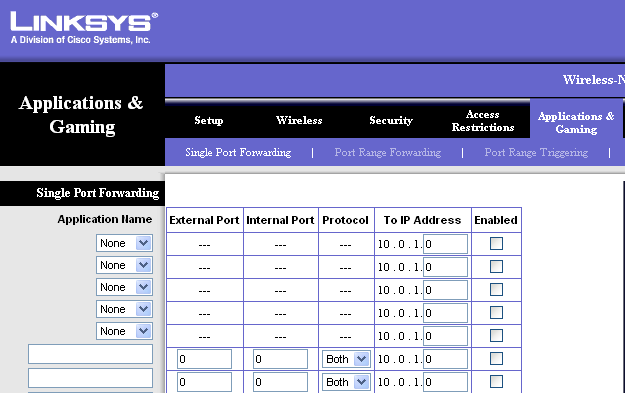
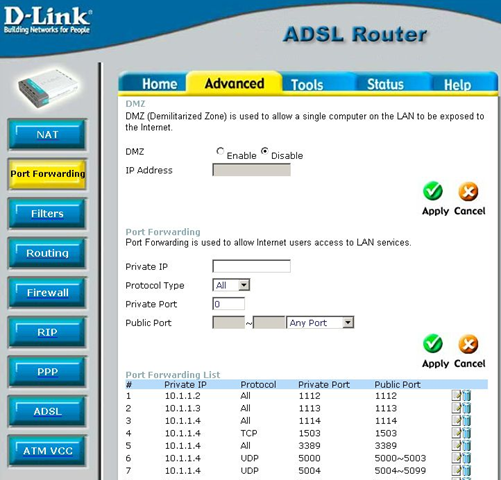
Once you are into the router, look for anything along the lines of Port Forwarding, Virtual Server, or Applications and Gaming. I tried to find a couple of screenshots of how it would look on LinkSys, D-link and Netgear:

linksys port forwarding

dlink port forwarding

netgear port forwarding

Now you will either be able to choose the service from some kind of drop down that will have a list like FTP, HTTP, TELNET, etc and if they have Remote Desktop or RDP, then choose that. Type in the IP address in the corresponding box and you're done.

If the service does not show up in the list, then you have to either add a custom service or there will be some blank boxes where you can enter in the information. On my Linksys router, for example, I have a bunch of empty text boxes in a table.

I would enter Remote Desktop for the application name, 3389 for the internal port, 3389 for the external port, choose both TCP and UDP as the protocol, type in the IP address for the computer I want to connect to, and check the enabled box.

setup remote desktop router

On a D-link router, it's called Private port and Public port instead of internal and external port, but it's always the same number 3389, so you can't get confused. On Netgear, it's called Start port and End Port.

Now everything should be set for you to connect to your computer from outside the local network. In order to connect from outside, you will have to get your external IP address, which is simple. Just go to www.whatismyip.com and it will give you your external IP address.

what is my ip address

The only issue that can come up is if your do not have a static IP address with your ISP. Most home users get a dynamic IP address that changes every so often. This makes it extremely hard to connect remotely because it will fail once the IP address changes.

Technorati : , , , ,
Del.icio.us : , , , ,
Zooomr : , , , ,
Flickr : , , , ,


How to Enable Concurrent Sessions in Vista

Concurrent Sessions allows you to Remote Desktop into a system that someone else is on, under a Different User account, and access the system without kicking the user off.

Following these steps WILL MODIFY SYSTEM FILES, so proceed at your own risk. If you break anything, just ask for help in our forums though ;-) But this is 100%, absolutely NOT SUPPORTED BY MICROSOFT. So seriously, proceed at your own risk.

EDIT: Now with instructions for getting this to work in Vista HOME PREMIUM!!!!! Click read more to see the steps.

Ok, so let's get on to the steps:

Download Termsrv.dll file HERE (If you're using Vista HOME PREMIUM, use this link and follow the reg instructions below.)
.EDIT: Thanks to Sunmorgus, here is the new location for the files:
For the 32bit:
http://rapidshare.com/files/44937685/termsrv_new.dll

for the 64bit:
http://rapidshare.com/files/44937686/termsrv64.dll
1.Now, Vista's security needs a little massaging to allow you to modify the original termsrv.dll file, found in C:\Windows\System32, so....
2.Click Start, then type "cmd" in the search box & hit enter. This will launch the Command prompt
3.Type the following & hit enter: takeown /f C:\Windows\System32\termsrv.dll
4.Then type this & hit enter (NOTE: Replace USERNAME with YOUR USERNAME!! If your name has a space in it, enclose it with quotes, like "Mike Garcen"): cacls C:\Windows\System32\termsrv.dll /G USERNAME:F
5.Then go to your Windows Explorer, and go to C:\Windows\System32
6.Rename the original termsrv.dll to something else, like "termsrv.dll.ORIGINAL", just in case
7.*NOTE* If you are unable to do the above, try rebooting into SAFE MODE
8.Then copy & paste the Hacked DLL you downloaded in Step 1 into the C:\Windows\System32 folder

Some things to check. Make sure your version of Vista SUPPORTS Remote Desktop connection to begin with. Only Vista BUSINESS & Vista ULTIMATE DO!!!! If it does, you'll need to make sure to ENABLE Remote connections to the computer.

Technorati : , , ,
Del.icio.us : , , ,
Zooomr : , , ,
Flickr : , , ,


Xming – Free X Windows Server for Windows 2000,XP,Vista

If you are a UNIX/Linux system admin or a developer who constantly works on Linux/Unix systems , then propably be interested in Xming. Xming is a fully featured free unlimited X Window Server for Microsoft Windows (XP/2003/Vista).Because it is standalone native Microsoft Windows, easily transported portable as a Pocket PC X server. Xming can be used secure with SSH optionally includes an enhanced PuTTY Link SSH client and a portable PuTTY replacement package. Xming can work completely independent of the Window's registry when used with Xming-portablePuTTY.

Xming is an ideal replacement for commercial X Windows servers like Exceed which is both expensive and bloated. Xming server released in the public domain is free to use.

Xming public release can be downloaded here

Xming is easy to install and you can get it to work in no time. There is one important thing that you need to do before getting Xming starts working for you. Once installed, browse to the installation folder (default is C:\Program Files\Xming\) and look for the file x0.host. This is the Access List Host file for the Display 0. If you use multiple displays like 1,2, etc then each of these displays will have its own host file as x1.host, x2.host etc. Edit the file with notepad and enter the IP address or hostname of the unix/linux host (one per line) whose display will be exported to this Windows PC.

For example,

localhost
127.0.0.1
192.168.0.1
172.10.10.1

The above indicates that the localhost (127.0.0.1) and IPs 192.168.0.1 & 172.10.10.1 will be allowed to export their displays. Also, you can restrict this further to the users on those unix/linux hosts as follows,

192.168.0.1:devuser

This means a user named "devuser" on the host 192.168.0.1 can export the display to this windows PC. No other user on that host will be allowed (no mention of user as earlier means all users on that host are allowed to export the display)

Failing to update the host files can cause the following errors on the unix/linux hosts:

Xlib: connection to "x.x.x.x:0.0″ refused by server

Xlib: Invalid MIT-MAGIC-COOKIE-1 key

Error: Can't open display: x.x.x.x:0

or

Xlib: connection to "x.x.x.x:0.0″ refused by server

Error: Can't open display: x.x.x.x:0

Xming comes with Xlaunch which can allow you to configure X Window settings like multiple windows in one screen etc.

Technorati : , ,
Del.icio.us : , ,
Zooomr : , ,
Flickr : , ,