Showing posts with label Linux. Show all posts

Use HTTP PROXY via command line in Linux/FreeBSD

Use Proxy Server To Access Internet at Shell Prompt With http_proxy Variable

Linux / UNIX has environment variable called http_proxy. It allows you to connect text based session / application via the proxy server. All you need is proxy server IP and port values. This variable is almost used by all utilities such as elinks, lynx, wget, curl and others.

Assuming that your HTTP Proxy IP address is 192.168.0.1 port 3128 (standard proxy port)

Set http_proxy shell variable

Type the following command to set proxy server:

$ export http_proxy=http://server-ip:port/
$ export http_proxy=http://192.168.0.1.1:3128/
$ export http_proxy=http://proxy-server.mycorp.com:3128/

How do I setup proxy variable for all users?

To setup the proxy environment variable as a global variable, open /etc/profile file:
$ vi /etc/profile

In order to make this proxy permanent, add the line to your ~/.profile or /etc/profile or ~/(bash|ksh|sh)rc file.

Add the following information:
export http_proxy=http://proxy-server.mycorp.com:3128/

Save and close the file.

How do I use password protected proxy server?

$ export HTTP_PROXY='http://username:password@192.168.0.1:3128'

You can simply use wget as follows:

$ wget --proxy-user=USERNAME --proxy-password=PASSWORD http://path.to.domain.com/some.html

Lynx has following syntax:
$ lynx -pauth=USER:PASSWORD http://domain.com/path/html.file

Curl has following syntax:
$ curl --proxy-user user:password http://url.com/

To unset this, use:

$ export HTTP_PROXY=' '


Access and Explore Linux File systems on Windows OS

Mount or Explore Linux file system on windows but rather a collection of software that will enable you to mount and or explore linux file systems such as Ext2, Ext3 and Reiserfs.

Ext2 IFS - Provides Windows NT4.0/2000/XP/2003/Vista/2008 with full access to Linux Ext2 volumes (both read and write access). This may be useful if you have installed both Windows and Linux as a dual boot environment on your computer.

DiskInternals Linux Reader - Provides read-only access and does not allow you to make records in Ext2/Ext3 file system partitions. It is 100% free by the way.

Ext2FSD
- Act as a file system driver for Windows NT/XP/2K to access a linux filesystem such as ext2.

Explore2FS - A linux filesystem explorer for Windows 9x/NT/XP or XPSP2/Win2k3 which supports ext2 and ext3 linux filesystems.


Filesystem Hierarchy of Linux

5:18 PM by Yash Kalra 0 comments

/root ----> super user's (root) home Directory

/home/ ---> local user's home Directory

/bin ---> local user's binary or local user's CLI commands are stored inside this Directory

/sbin ---> system binary or super user's CLI commands are stored inside this Directory

/usr/bin ---> local user's GUI utilities are installed here

/usr/sbin ---> super user's GUI utilities are installed here

/sys ---> all system files are stored here

/media ----> used to access media devices

/proc ---> all kernel and process information's are stored here

/mnt ----> Blank Directory in system used for mounting purpose

/srv ---> all protocol services are managed from this directory

/dev ---> all device files are stored here

/boot ---> system booting files, boot loader , kernel image or ram drive image are stored here

/lib ----> all library file are stored here

/lost+found ----> system's all damaged files are stored here

/etc ----> system's all configuration files are stored inside this directory on inside its sub-directories

/var ---> all variable file , print spool , users default mail generate inside this directory

/var/log/ ---> inside this directory all audit , error , system log , services log messages are generate here


Grub boot sequence change

5:15 PM by Yash Kalra 0 comments

Grub boot sequence change

To change boot sequence, just edit the configuration at /etc/grub.conf
("root" privilege is required)

I use vi as the text editor

vi /etc/grub.conf

On the parameters of default, change to the number of its partition on the hdd, like 0 in the example shown above. (hdd 0,0: Windows; hdd 0,1:swap; hdd 0,2:Fedora )

timeout is for the pending time for selection before it auto-boot the default choice, which is set to 5second on example above.

After changing to 0 (previously 2 for Fedora partition), pls kindly restart and it shall works!

reboot


Install Windows after Linux and dual-boot

With the new GRUB 2′s recent release, there has been a lot of messing around with GRUB Legacy which, to be honest, there's no need for. This tutorial will assume that you have Linux installed on your hard drive/virtual machine and just installed Windows to it but have lost your choice of booting Linux on startup. This is caused by Microsoft wanting their virus to pwn the rest and they overwrite the MBR only for their own operating systems. So we are going to re-install GRUB to the MBR.

There's only one requirement: You need a Live CD with which you can boot into.

Using your Live CD, boot into the Ubuntu pre-installed environment. Once in, make sure that your Linux partition is mounted. You can check this by copying the following and seeing the same or similar output to the command-line:

And take a note the designation for the disk /dev/sda which you will be using later, and the directory in /media. It may even be /dev/hda depending on your hard drive's framework. And also, the long directory with letters and numbers after /media/. This is the directory of the partition. In the example, I'll use my own but you may need to change yours accordingly.

ls /media/bdd1efeb-e61f-467a-968c-8cea0af9349b/boot

Now that you've got what you need mounted, run the following command to rewrite GRUB to your MBR:

sudo grub-install --root-directory=/media/bdd1efeb-e61f-467a-968c-8cea0

If this did not work and you get BIOS warnings, try:

sudo grub-install --root-directory=/media/0d104aff-ec8c-44c8-b811-92b99

If for some reason the GRUB menu does not display Windows after your reboot, run into Ubuntu, open a terminal and run the following command:

sudo update-grub2

Now all you have to do is reboot making sure to boot to your hard drive and not to the live CD. GRUB should be installed and both Ubuntu and Windows should have been automatically detected and listed in the menu.

The Master Boot Record will execute GRUB as the initial bootloader. The Windows bootloader is contained within the Windows partition and will then be chainloaded by the GRUB bootloader.

It should work now.


Linux file system explained

The first thing you should know when working with linux, is that everything is treated as either a file or directory. Yeap thats right, even hardware is considered a file by linux, and, speaking of hardware… all your hardware devices are located in the /dev directory, but more on that later.

Another thing that confuses windows users, is the fact that linux dosen't use drive letters to distinguish between different partitions and devices. that is to say in linux, the "root" of your filesystem is / whereas in windows it would most probably be C:\ . Drives in linux are "mounted" to directories where their data can then be accessed, so for instance, if you needed to use your thumbdrive, you would plug it into your computer, and then mount it using the "mount" command, which specifies the path to the device ( something like /dev/sdb or /dev/sdc ) and the directory to mount it to (usually /mnt or /media), then you can happily access your drive from the /mnt or /media folder.

Sounds strange right? well yes it does if you come from a windows environment, where the entire operating system is consolidated onto a single drive. However, with linux and the ability to mount devices as directories, it gives the end user much greater flexibility in splitting up their operating system over several drives or partitions.

to understand what I mean when I say that this approach in mounting drives grants flexibility, I must first explain the different folders in linux and what they store

Now in a bit more detail what each folder contains.

/ this is the root folder, all other folders come under root.. think of it as C:\ in a Windows context.

/bin this folder contains all the user-essential binaries (programs) that are needed to administer and run your linux system… delete this folder and your system is broken.

/boot as the name suggests, this folder contains configuration files and other necessary files that are needed by the bootloader

/dev this folder contains device files (remember, these files represent physical devices, so be careful when working with them)

/etc this folder contains all the configuration files used by the system, you can also start and stop services (daemons ) from here

/home this folder contains the home folders of all the normal (non - root ) users on the system .. think of it as my documents in windows

/lib this folder contains software libraries

/media this is a mount point for removable devices… this is where you would usually mount your thumbdrives … etc

/mnt this is a temporary mount point

/opt this folder contains add on software (extra software)

/sbin this folder contains binaries that can only be run as the root user ("superuser")

/tmp this folder contains temporary files that are erased upon reboot

/usr this folder and its subfolders contains user installed programs and utilities and libraries

/var this folder contains files that change alot ("Variable files")

/root this folder contians the root user's files

/proc this is a psuedo folder, that contains information about the linux kernel and hardware that is updated in realtime.

Now back to how mounting grants flexibility…

you see how the different folders all contain parts of the operating system? well we can actually mount a seperate hard drive for each of this folders. for example, your /home folder can be put on another harddrive than your / which means that you can easily recover your personal files if the harddrive on / fails because the harddrive mounted to your /home folder is seperate from the one that is mounted to your /

So there you have it, you now know a little bit more about the nuts and bolts of linux based operating systems.


Reset Linux Root Password Using the GRUB

Before I start the central aspect of this article - resetting the Linux root password, let me quickly introduce you to boot loaders and the GRUB.

A boot sequence is the initial set of operations that the computer performs when the power of a computer is switched on. A boot loader typically loads the main Operating System for the computer.

A computer's central processor can only execute program code found in the Read-Only-Memory (ROM) and Random-Access-Memory (RAM). However, when the computer is switched on, it does not have an Operating System in its ROM or RAM. So a computer initially executes a small program stored in a ROM, which in-turn loads the required code and data into the RAM for execution.

This small program which performs this process is known as a bootstrap loader, bootstrap or a boot loader. This program is generally not the Operating System, but a miniature program which will load the required Operating System into the RAM from the non-volatile storage.

There are several popular boot loaders used today - GRUB, BOOTMGR, LILO and NTLDR. The GNU GRUB (GNU GRand Unified Bootloader) is a boot loader package from the GNU Project and is one of the most popular boot loaders available today. LILO (LInux LOader) is a generic boot loader for Linux. NTLDR (NT Loader) is the boot loader for all releases of Microsoft's Windows NT Operating System. In later versions of Windows like Vista and Windows 7, NTLDR was replaced by the Windows Boot Manager (BOOTMGR).

In this article, we restrict ourselves to the GRUB loader. Typically, a few dual-boot environments and a few Linux based Operating Systems use the GRUB as their boot loader. Here is a screen-shot of the GRUB loader of Red Hat Enterprise Linux 5 -


There are many scenarios where we might need to reset the root password of our Linux system. Consider you have been assigned to a Linux system to work with and the previous owner forgot to give you the root password; maybe you are in the middle of an important project and you don't have the root password of the system when you need it urgently and the worst part - the system administrator is not in sight; or maybe you just forgot it. The possibilities are limitless.

But remember, before you attempt to change or replace the password of any machine, make sure you have the necessary permissions from the management authorizing it. If not, it can be mistaken as an attempt to hack into the machine, which is not ethical.

  • Start the system, when the selection screen comes up, navigate to the line for Linux and press 'e'
  • Now, select the entry that begins with the word - 'kernel' and again press 'e'
  • Append 'single' to the end of the existing line. Make sure there is a space between the existing content and 'single'
  • Press 'b' to boot into Linux as the root

You are now in the special mode called the "Single-User Mode".

If prompted for the root password here, restart the system and in the previous step, append 'init=/bin/bash' after 'single'

  • Use 'passwd' to specify the new root password

I am sure that reading this procedure would have caused apprehensions in the minds of several readers about the security of their systems. Using this method, anybody can hack your system. So if you want to be careful and avoid such situations, you will need to restrict any modifications to the GRUB. This can be done by protecting the GRUB by using a password.

  • Open the shell prompt and login as the root
  • Use the 'grub-md5-crypt' command to get the MD5 hash of your GRUB password
  • Open '/boot/grub/grub.conf' and add 'password -md5 ' below the timeout field
  • Save and exit

From next time, if you want to edit the GRUB, you will have to press 'p' followed by the GRUB password. The downside of this is that there is an extra password for you to remember. Well, accessibility has always been a trade-off in security.

Note - Changing passwords of a system without proper permissions is unethical and illegal, which may lead to legal complications. So always follow a proper authorization channel before changing the passwords.


How to Change or Spoof MAC Address in Windows XP, Vista, Server 2003/2008, Mac OS X, Unix and Linux

MAC address (Media Access Control address) is a quasi-unique identifier consists of a six byte number that attached to most network adapter card or network interface card (NIC). As such, all network cards, whether it's of Ethernet NIC, Gigabit Ethernet NIC or wireless 802.11a/b/g/n WiFi or HiperLAN adapter, should have different MAC addresses, which also known as Ethernet Hardware Address (EHA) or adapter address.

In operating system, MAC address is often represented in 12-digit hexadecimal number. For example, 1A-2B-3C-4D-5E-6F. In practical usage, layer 2 MAC address is converted from layer 3 protocol addresses such as Internet Protocol (IP address) by ARP (Address Resolution Protocol), which then allowed each host to be uniquely identified and frames to be marked for specific hosts on broadcast networks, such as Ethernet. After translated (or when a host on LAN sends its MAC address to another machine which does n ot configured not to accept unrequested ARP replies on the network for preemptive caching), MAC address is cached on source PC ARP table for later use. Content of ARP table on each computer can be viewed by typing arp -a in Windows or arp in Linux. MAC address thus forms the basis of most of the layer 2 networking upon which higher OSI Layer protocols are built to produce complex, functioning networks.

There are many reasons or possibilities that an user may want to change the MAC address or a network adapter, which also known as MAC spoofing. For example, to bypass the MAC address filtering on firewall or router. The trick can be used to get pass the network access restriction by emulating a new unrestricted MAC address, or to gain access connection by spoof an authorized MAC address after sniffing the legitimate MAC address out of the air in MAC filtering Wi-Fi network.

Beside, hackers or enthusiasts also spoofing another host's MAC address as their own in order to receive traffic packets not meant for them, although ARP poisoning technique is more commonly used. However, changing MAC address can still keep the real information from been detected and logged by various services such as IDS, firewall, DHCP server, wireless access points and etc, and is essential protect user's privacy. MAC spoofing also potentially trigger a Denial of Service (DoS) attack by causing routing problem with duplicating MAC address exists in the network, especially those similar with gateway and AP router's BSSID (Basic Service Set Identifier.)

Whatever the reason, it's pretty easy to change the MAC address or perform MAC spoofing on most of today's hardware, listed below. Actually, the original MAC address is burnt and imprinted to the network card, and cannot be changed. However, operating system can spoof as if there is different MAC address for the network interface card using tricks below.

Change the MAC address in Windows

  1. Go to Start -> Control Panel. Double click on Network Connections (inside Network and Internet Connections category in Windows XP). The, right click on the active network connection with network adapter that you want to change the MAC address (normally Local Area Network or Wireless Network Connection) and click on Properties.

    Above steps work in Windows XP, Windows 2000 and Windows Server 2003. For Windows Vista, access to NIC's properties is from Control Panel -> Network and Internet -> Network and Sharing Center -> Manage Network Connections.

    Alternatively, if you already know which network adapter that's responsible for your network or Internet connection, go to Device Manager and open the properties dialog by double click on the NIC itself.

  2. In the General tab, click on the Configure button.
  3. Click on Advanced tab.
  4. In the Property section, select and highlight Network Address or Locally Administered Address.
  5. To the right, "Not Present" radio button is by default selected as value. Change the value by clicking on radio button for Value:, and then type in a new MAC address to assign to the NIC.

    Change MAC Address of Network Adapter

    The MAC address consists of 6 pairs of numbers (0 - 9) and characters (A - F) combination. For example, 88-17-E8-90-E2-0A. When entering the new MAC value, omit the dash (-), for example 8817E890E20A.

  6. Click OK when done.
  7. To verify the change of MAC address, go to command prompt, then type in one of the following commands:

    ipconfig /all
    net config rdr

  8. Reboot the computer if successful to make the change effective.

Note: To restore or reset back to original default MAC address, simply set back the option to "Not Present".

Change the MAC Address of NIC in Windows via Registry

  1. Open a command prompt.
  2. Type the following command and hit Enter.

    ipconfig /all

  3. Record down the Description and the Physical Address (is MAC address) of the active network connection (discard those with Media Disconnected state).

    Get MAC Address for Network Card

    For example, in figure above, Description is Intel(R) Wireless WiFi Link 4965AGN and MAC address is in the format of 00-XX-XX-XX-XX-XX.

  4. In the command prompt also, type the following command and hit Enter.

    net config rdr

  5. Record down the GUID for the MAC address for the active connection's NIC which MAC address to be changed. The GUID is contained within the { and } brackets right in front of the MAC address as shown in figure below.

    GUID for the NIC

  6. Type regedt32 or regedit in Start -> Run box or in Start Search for Windows Vista. Note: for Windows NT 4.0 and Windows 2000, regedt32 must be used.
  7. Navigate to the following registry key:

    HKEY_LOCAL_MACHINE\SYSTEM\CurrentControlSet\Control\Class\{4D36E972-E325-11CE-BFC1-08002BE10318}

  8. Expand the {4D36E972-E325-11CE-BFC1-08002BE10318} tree, and there will be more sub-keys in the form of 0000, 0001, 0002 and so on.
  9. Go through each sub-key starting from 0000, look for subkey that has DriverDesc value data that matches NIC description copied from step above, that want its MAC address to be changed. In most cases, it will be similar to the network adapter card name.

    To verify that the subkey found is indeed a correct one, check the value of the NetCfgInstanceId, which should have the same value with the NIC's GUID taken from step above.

  10. Once a sub-key is matched to the network interface card that MAC address want to be spoofed, select and highlight the subkey. Right click on the sub-key (for example, 0000), then select New -> String Value. Name the new value name as NetworkAddress.

    Note: If NetworkAddress REG_SZ registry key is already existed in the right pane, skip this step.

  11. The double click on NetworkAddress and enter a new MAC address as its value data.

    Change and Spoof MAC Address in Registry

    Note that the 12-digit MAC address in hexadecimal format, and should be entered without any dash (-). For example, 1A2B3C4D5E6F.

  12. Reboot the system to make the new MAC address effective. Alternatively, if you don't want to restart the system, try to disable and then re-enable the network adapter in Device Manager.
  13. To verify the change of MAC address, go to command prompt, then type in one of the following commands:

    ipconfig /all
    net config rdr

Note: To restore or reset back to true original hardware burned-in MAC address, remove the NetworkAddress registry key that is been added.

Alternative: Third party tools and utilities to change the MAC address in Windows operating system are plenty, for example: SMAC (direct download link to smac20_setup.ex, supports Windows Vista, XP, 2003, 2000), Macshift (direct download link to macshift.zip, for Windows XP), BMAC (almost identical SMAC MAC changer clone by moorer-software.com), Mac MakeUp (direct download link to macmakeup.zip, for Windows 2000/XP/2003/Vista), MadMACs (MAC Address Spoofing And Host Name Randomizing App For Windows, directly download MadMACs.zip), EtherChange (direct download link to etherchange.exe), and Technitium MAC Address Changer (for Windows 2000 / XP / Server 2003 / Vista / Server 2008).

How to Change MAC Address (MAC Spoofing) in Linux and *nix

To change your MAC address in Linux and most Unix-like (*nix) system, run the following script commands:

ifconfig <interface> down

ifconfig <interface> hw <class> <MAC address>

ifconfig <interface> up

For example, the command looks lik "ifconfig eth0 down hw ether 1A:2B:3C:4D:5E:6F". First command brings down the network interface, second command change its MAC address while third command bring up the interface again. Note that in some cases, to bring down and bring up the network interface, the following commands have to be used:

/etc/init.d/networking stop or /etc/init.d/network stop (in the case of Fedora Core 5)

/etc/init.d/networking start or /etc/init.d/network stop (in the case of Fedora Core 5)

Alternatively, for Fedora Code 5 Linux with Iproute2 tools installed, the following commands also can change the MAC address to spoofed version:

/etc/init.d/network stop

ip link set <interface> address 1A:2B:3C:4D:5E:6F

/etc/init.d/network start

For example, "ip link set eth0 address 1A:2B:3C:4D:5E:6F". To check whether the MAC address has been spoofed, use ip link ls eth0 or ip addr ls eth0 instead of using ifconfig eth0.

How to Make the Spoofed MAC Address Permanently Even After Reboot in Linux

Edit the ifcfg-eth0 file (or other similar file if you're changing different interface), add the following variable line to the file:

MACADDR=12:34:56:78:90:ab

Then run service network restart to make the change effective immediately.

How to Make the Spoofed MAC Address Permanently on Restart in Debian

Edit the /etc/network/interfaces file and add in the following variable line to the appropriate section so that the MAC address is set when the network device is started.

hwaddress <interface> 02:01:02:03:04:08

For example, "hwaddress ether 02:01:02:03:04:08″.

Alternative: GNU Mac Changer (for Debian, Slackware, ArchLinux, Mandrake, Crux and other RPM-based distributions such as Fedora, Red Hat, CentOS, ASPLinux, SUSE Linux, OpenSUSE and etc.

How to Change MAC Address (MAC Spoofing) in BSD or FreeBSD

Issue the following commands in shell:

ifconfig <interface> down

ifconfig <interface> <class> <MAC address>

ifconfig <interface> up

First command brings down the network interface (optional), second command change its MAC address while third command bring up the interface again (optional). For example, the command looks lik "ifconfig xl0 link 1A:2B:3C:4D:5E:6F" or "ifconfig fxp0 ether 1A:2B:3C:4D:5E:6F"

How to Change MAC address in Solaris

The shell command to change the MAC address in Sun Solaris is as below:

ifconfig <interface> <class> <address>

For example, the command looks like "ifconfig hme0 ether 1A:2B:3C:4D:5E:6F". Note that the change is temporary that does not persist after a reboot. To make this change permanent, the command can be placed in a runtime control script (/sbin/sh).

How to Spoof MAC Address in HP-UX

It's possible to change MAC address using HP-UX SAM. Select Networking and Communications, then selecting the interface, then click on Action -> Modify -> Advanced Options. Finally, change the value of station address, which is MAC address name in HP-UX.

How to Spoof and Change MAC Address in OpenBSD

Use the following command to change MAC Address to spoofed MAC in OpenBSD (after version 3.8):

ifconfig <interface> lladdr <MAC address>

For example, "ifconfig bge3 lladdr 1A:2B:3C:4D:5E:6F".

How to Change to Spoofed MAC Address Permanently in OpenBSD

To make the MAC address changed at boot before network connection is established, and even before parsing of hostname.* file, edit the /etc/netstart file to add in the following lines before the line of "# Now parse the hostname.* file":

if [ "$if" = "INTERFACE" ]; then
ifconfig <interface> lladdr <MAC address in format of 00:00:00:00:00:00>
fi

# Now parse the hostname.* file
....

How to Change MAC Address in Mac OS X

Since Mac OS X 10.4.x (Darwin 8.x) onwards, the MAC address of wired Ethernet interface can be altered in Apple Mac OS X in a fashion similar to the Linux and FreeBSD methods. To do so, type the following command in Terminal.app:

sudo ifconfig en0 ether aa:bb:cc:dd:ee:ff

or

sudo ifconfig en0 lladdr aa:bb:cc:dd:ee:ff (for Mac OS X 10.5 Leopard)

where en0 is the network interface (numbered from en0, en1, en2 …) and aa:bb:cc:dd:ee:ff is the desired MAC address in hex notation.

Alternative: MacDaddy (download MacDaddyX.dmg, support Airport wireless adapter)


Disable Direct Root Login and User Access via SSH to Server

5:01 PM by Yash Kalra 0 comments

Everybody knows, including hackers and attackers that all Linux and UNIX flavored systems come with a all powerful root user account, which once get compromised, mean all hell breaks loose. So it's a good security practice to disable the ability for root user to able to login and gain access to the server system via SSH directly (of course, the system must have disabled FTP access). After disabling direct root SSH remote login, the chance for the brute force hacking to success is greatly reduced.

To turn off and disable direct root SSH login, follow this simple tutorial:

IMPORTANT: Make sure you have another account (preferably belongs to wheel user group too) which is able to login via SSH remotely, and able to SU to root user account. Else you risk been locked out from your server.

  1. SSH into server and login as root.
  2. In command shell, use pico or vi to edit sshd_config file by typing one of the following commands:

    pico /etc/ssh/sshd_config
    vi /etc/ssh/sshd_config

  3. Scroll down the SSH server configuration file and locate a line like below:

    #PermitRootLogin yes

  4. Uncomment the line by removing the hash symbol (#), and then change the "yes" to "no". The final line should look like below:

    PermitRootLogin no

  5. Save the config file. In pico, press Ctrl-o, follow by Ctrl-x. In vi, type :wq and press Enter.
  6. Restart SSH server by typing the following command in command line, and press Enter:

    /etc/rc.d/init.d/sshd restart

Logout from SSH connection. Try to login as root, it should fail with Access denied error. To access root account, login with your own user name and password, and then SU to root.


Change and Reset MySQL root Password

4:56 PM by Yash Kalra 0 comments

Other then the ways specified here to reset and change the root password for mySQL database in the case that the password is forgotten or lost, the following instructions explain in details the alternative way at the last part of the guide, where no additional file needs to be created:

  1. Login as root to the Windows or Unix-like (Unix, Linux or BSD) machine with the MySQL server.
  2. Stop the MySQL server by using either of the following command:

    Linux: /etc/rc.d/init.d/mysql stop
    FreeBSD: /usr/local/etc/rc.d/mysql-server.sh stop

  3. Open the mysql server startup script (i.e. mysql-server.sh - the file executed to start or stop MySQL server.
  4. Add -skip-grant-tables to the end of the line that contains the mysqld_safe command as its parameter.
  5. Start MySQL server with the following command:

    Linux: /etc/rc.d/init.d/mysql start
    FreeBSD: /usr/local/etc/rc.d/mysql-server.sh start

  6. Alternatively, start the MySQL server directly and skip the editing with the following command:

    mysqld_safe -skip-grant-tables &

    Depending on your path environment, you may need to point to the correct directory where mysqld_safe is instead.

  7. Run the following commands to login as the mysql user and connect to mysql user/permission database:

    # mysql -u root mysql

  8. Run the update queries to change the MySQL password:

    mysql> UPDATE user SET Password=PASSWORD('newrootpassword') WHERE User='root';
    mysql> FLUSH PRIVILEGES;

    Note: Replace newrootpassword with the new root password for MySQL server. Flush Privileges is needed to making the password change effect immediately.

  9. Exit mysql database client by typing exit.
  10. Stop MySQL server with commands listed at step 2.
  11. Open the mysql server startup script edit in step 3 again and remove the -skip-grant-tables parameter that has been added.
  12. Start MySQL server by using command from step 5 or 6.

For Redhat Linux users, use the following instructions as the root user of Redhat Linux machine:

  1. Stop MySQL process by using command:

    # killall mysqld

  2. Start the MySQL server with following options:

    # /usr/libexec/mysqld -Sg -user=root &

  3. Start the MySQL client:

    # mysql

    You should see the following message:

    Welcome to the MySQL monitor. Commands end with ; or g.
    Your MySQL connection id is 1 to server version: 3.xx.xx

    Type 'help;' or 'h' for help. Type 'c' to clear the buffer.

    mysql>

  4. Use mysql database:

    mysql> USE mysql

    You should see the following message:

    Reading table information for completion of table and column names
    You can turn off this feature to get a quicker startup with -A

    Database changed

  5. Then, update the password for the root user with the following command:

    UPDATE user SET password=password("newpassword") WHERE user="root";

    Replace newpassword with your desired password. You should see the following message:

    Query OK, 2 rows affected (0.03 sec)
    Rows matched: 2 Changed: 2 Warnings: 0

    Rows affected may be different, but the Query OK should be there.

  6. Flush the database privileges to reload it in order to make the changes effective:

    mysql> flush privileges;

    You should get the following result:

    Query OK, 0 rows affected (0.02 sec)

  7. Exit the MySQL client by typing exit.
  8. Kill the MySQL server process by typing killall mysqld.
  9. Then start MySQL again:

    /etc/init.d/mysqld start


Reset and Change Windows NT/2000 Administrator or User Password with chntpw in Linux

4:51 PM by Yash Kalra 0 comments

Windows NT, Windows 2000 and Windows XP users who have forgotten the administrator account password has many ways to hack, crack, recover or reset the administrator password. Another way to break into a Windows PC which locks with forgotten or unknown password is to use chntpw, a Linux based program to change and reset the password of a Windows administrator account.

Chntpw is a program designed to overwrite and set Windows NT or Windows 2000 SAM password of any user that has a valid (local) account by modifying the encrypted password in the registry's SAM file. User of chntpw does not need to know the old password to set a new password. Actually, chntpw is now available in the form of bootdisk or LiveCD which includes necessary stuff to access NTFS partitions and scripts to glue the whole thing together.

Chntpw works on NT system which is offline (turned off), and can only be used on local machine and cannot be used on a remote machine. However, chntpw can be installed on a Linux system such as Ubuntu, and then used to recover by resetting Windows user account password by mounting the Windows drive, connected via physical IDE/SATA/SCSI interface or USB portable disk.

Chntpw can be installed using aptitude for user using Debian based system,

It is pretty easy to use and can be found and installed using aptitude if your using debian based system, or can be downloaded and installed in Ubuntu with a simple "sudo apt-get install chntpw" command. Chntpw is likely to be contained in other distributions package manager too, or the source code can be downloaded from http://home.eunet.no/~pnordahl/ntpasswd/editor.html.

Chntpw Usage Guide

  1. Mount the Windows NTFS, FAT or FAT32 partition to the Linux system, allowing read and write access support.
  2. Locate the SAM file for Windows 2000, Windows NT or Windows XP, which is normally located at the either \Windows\System32\config or \Winnt\System32\config folder. Change directory to inside the folder, there are a number of files such as SAM, SYSTEM and SECURITY.

    Inside the folder, issue the following command to automatically change the administrator password:

    chntpw SAM

    Issue the following command (replace USERNAME with actual user name on the computer) to change the password for a normal restricted user account:

    chntpw -u USERNAME SAM

    Tip: To list all the users in the SAM file, use the chntpw -l SAM command.

  3. Chntpw will display some information on screen, and then prompt for new password to reset the existing password. Enter a new password for the administrator or user account.

    Tip: To reset the password to blank (no) password, enter * (asterisk).

  4. Unmount the drive, and then restart the Windows computer. The password for the administrator or user account reseted should be changed accordingly.

There are other options for chntpw, which can be displayed with the following command:

chntpw -h

# chntpw help and usage

chntpw version 0.99.3 040818, (c) Petter N Hagen
chntpw: change password of a user in a NT SAM file, or invoke registry editor.
chntpw [OPTIONS] 
 [systemfile] [securityfile] [otherreghive] [...]
 -h          This message
 -u 
   Username to change, Administrator is default
 -l          list all users in SAM file
 -i          Interactive. List users (as -l) then ask for username to change
 -e          Registry editor. Now with full write support!
 -d          Enter buffer debugger instead (hex editor),
 -t          Trace. Show hexdump of structs/segments. (deprecated debug function)
 -v          Be a little more verbose (for debuging)
 -L          Write names of changed files to /tmp/changed
 -N          No allocation mode. Only (old style) same length overwrites possible
See readme file on how to extract/read/write the NT's SAM file
if it's on an NTFS partition!
Source/binary freely distributable. See README/COPYING for details
NOTE: This program is somewhat hackish! You are on your own!


Linux Network Administrator's Guide


The image “http://s4.tinypic.com/28s0dtt.jpg” cannot be displayed, because it contains errors.
Linux Network Administrator's Guide

The Linux Network Administrator's Guide, Third Edition dispenses all the practical advice you need to join a network. Along with some hardware considerations, this highly acclaimed guide takes an in-depth look at all of the essential networking software that comes with the operating system--including basic infrastructure (TCP/IP, wireless networking, firewalling) and the most popular services on Linux systems. But as the follow-up to a classic, the third edition of the Linux Network Administrator's Guide does more than just spruce up the basics. It also provides the very latest information on the following cutting-edge services:

* Wireless hubs
* OpenLDAP
* FreeS/WAN
* IMAP
* Spam filtering
* OpenSSH
* BIND
* IPv6

Featuring a litany of insider tips and techniques, the Linux Network Administrator's Guide, Third Edition is an invaluable companion for any network administrator interested in integrating Linux into their Windows environment Authored by Terry Dawson, Tony Bautts, and Gregor N. Purdy, the Linux Network Administrator's Guide, Third Edition emerged from the Linux Documentation Project (LDP). The LDP's goal is to centralize all of the issues of Linux documentation, ranging from online documentation topics such as installing, using, and running Linux.

Author......: Tony Bautts
Publisher...: O'Reilly Media, Inc.
Date........: 2005-02-03
ISBN/ASIN...: 0596005482
Pages.......: 362
Language....: English
Size........: 1.09 MB

Download
http://rapidshare.com/files/159755914/ebook.Linux_Network_Administrators_Guide.0596005482.zip Download Torrent

Linux Network Administrator's Guide Torrent

Technorati : , , , ,
Del.icio.us : , , , ,
Zooomr : , , , ,
Flickr : , , , ,


SUSE Linux 10 Bible


SUSE Linux 10 Bible
Wiley | ISBN-10: 0471754889 | 912 Pages | PDF | 15.1 MB


Product Description
Includes new coverage of Novell Linux Desktop and Open Enterprise Server (Novell's traditional environment running on SUSE), with information on YaST management tools and the OpenExchange e-mail server
Introduces basic Linux methodologies, including partitions, filesystems, filesystem layout, and more
Covers the SUSE system, command line programs, implementing online services, and using SUSE business tools in the enterprise setting
Features a section devoted to end-user needs
Also covers virtualization, including dosemu, wine, Crossover Office, uml xen and Vmware, expanded coverage of SUSE with sendmail, CUPS, LDAP and more
Companion DVD includes the SUSE Linux distribution.

Download

http://www.easy-share.com/1905387925/suselnx10bbl.rar
OR
http://rapidshare.com/files/238059565/suselnx10bbl.rar

Download Torrent

Technorati : , ,
Del.icio.us : , ,
Zooomr : , ,
Flickr : , ,


28 Google Reader Shortcuts

Mastering shortcuts is definitely the way to speed your efficiency in any software, let it be an offline application like photoshop, Windows OS itself or even online applications. Here are 28 shortcuts to help you speed read and control your Google Reader.

J Selects Next Item in list
K Selects Previous Item in list
Space Page Up
Shift + Space Page Down
N Next Item in list view
P Previous Item in list view
O Expand / Collapses any selected item
Enter Expand / Collapses any selected item
S Star an item
Shift + S Share an item
M Mark item as Read / Unread
T Tag an item
V Open article source code in new window
Shift + A Mark all as read
1 Expand all subscriptions
2 Headline views all subscriptions
R Refresh feeds
Shift + N Next in subscriptions
Shift + P Previous in subscriptions
Shift + X Expand / Collaps folders of subscriptions
Shift + O Open selected subscriptions
G H Go back to Home
G S Go to Starred items
G T Launch Tag and browse by Tag
G U Launch Subscription and browse Subscriptions
U Hide / Show Subscription Panel
Shift + ? Where I got this list from. Reader shortcuts in Popup :-)
Alt + F4 Time to get back to work

Technorati : , , , ,
Del.icio.us : , , , ,
Zooomr : , , , ,
Flickr : , , , ,


Linux All-in-One Desk Reference For Dummies

Linux All-in-One Desk Reference For Dummies
Publisher: For Dummies | ISBN: 0471752622 | edition 2006 | PDF | 840 pages | 11,9 mb

* Eight minibooks spanning over 850 pages deliver the scoop on the latest versions of seven leading Linux distributions: Fedora Core, SUSE, Debian, Xandros, SimplyMEPIS, Knoppix, and Ubuntu
* The DVD includes the full Fedora Core and Knoppix distributions plus ISO images of the other distributions covered, saving hours of downloading time
* This new edition includes all-new coverage of the SimplyMEPIS and Ubuntdistributions, an added section on the Skype Internet telephone system, and expanded coverage of Firefox, SELinux, and OpenOffice.org applications
* The eight minibooks cover Linux basics, desktops, networking, the Internet, administration, security, Internet servers, and programming
* The Linux share of the operating system market is expected to grow from three to 11 percent in the next four years

Links

:: NO PASSWORD ::

Uploading

Qube

Bitroad

Hotfile

Depositfiles

Technorati : , ,
Del.icio.us : , ,
Zooomr : , ,
Flickr : , ,


How To Install VMware Server 2 On Ubuntu 9.04

How To Install VMware Server 2 On Ubuntu 9.04

This tutorial provides step-by-step instructions on how to install VMware Server 2 on an Ubuntu 9.04 desktop system. With VMware Server you can create and run guest operating systems ("virtual machines") such as Linux, Windows, FreeBSD, etc. under a host operating system. This has the benefit that you can run multiple operating systems on the same hardware which saves a lot of money, and you can move virtual machines from one VMware Server to the next one (or to a system that has the VMware Player which is also free).

Also, with VMware Server you can let your old Windows desktop (that you previously converted into a VMware virtual machine with VMware Converter.This can be useful if you depend on some applications that exist for Windows only, or if you want to switch to Linux slowly.

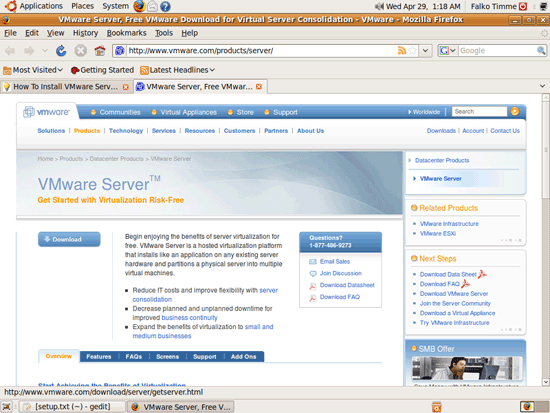
To download VMware Server, go to http://www.vmware.com/products/server/ and click on Download:


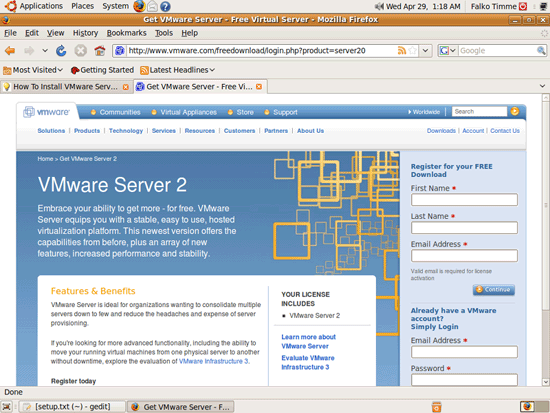
On the next page, log in with your existing VMware account or create a new one:


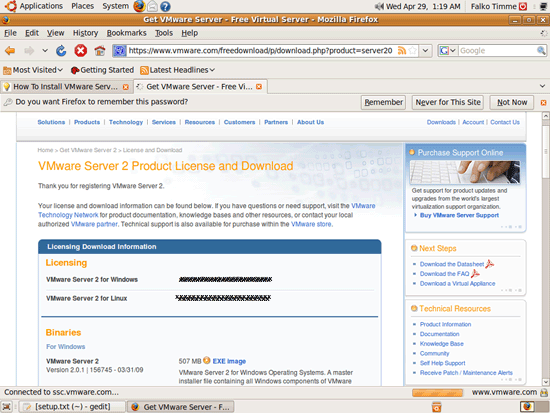
Follow the on-screen instructions. At the end, you should receive an email with a link to your download page. On the download page, you should see two license numbers, one for Windows and one for Linux. Write down or save the one for Linux and scroll down.


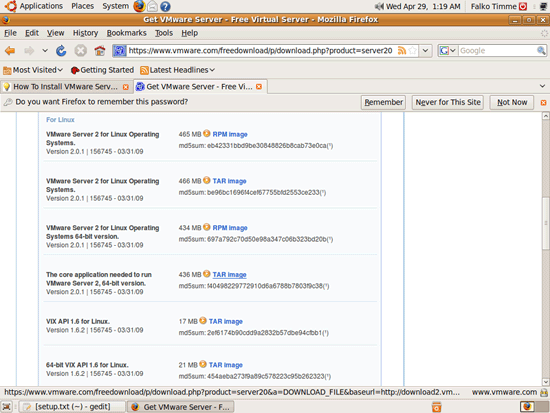
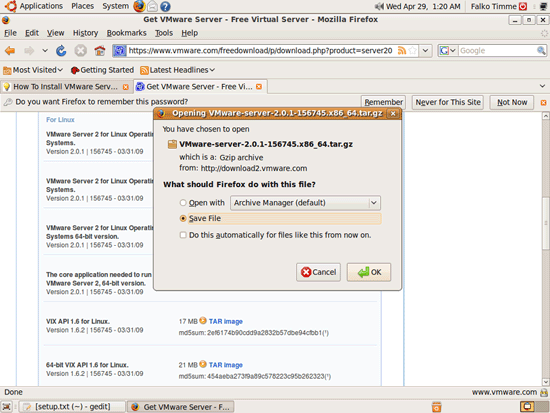
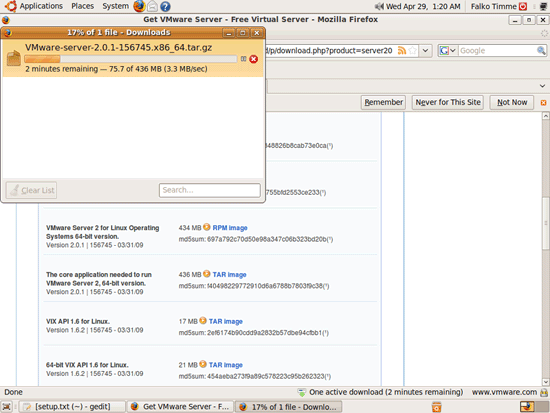
Then download the VMware Server for Linux TAR image (not the RPM image!) to your desktop (e.g. to /home/falko/Desktop). Make sure you pick the right one for your architecture (32-bit or 64-bit):


Then open a terminal (Applications > Accessories > Terminal) and run the following command to install some necessary packages:

sudo aptitude install linux-headers-`uname -r` build-essential xinetd

Then go to the location where you saved the VMware Server .tar.gz file

Unpack the VMware Server .tar.gz file and run the installer:

tar xvfz VMware-server-*.tar.gz


cd vmware-server-distrib


sudo ./vmware-install.pl


The installer will ask you a lot of questions. You can always accept the default values simply by hitting <ENTER>.

When the installer asks you

In which directory do you want to keep your virtual machine files?


[/var/lib/vmware/Virtual Machines]

you can either accept the default value or specify a location that has enough free space to store your virtual machines.

At the end of the installation, you will be asked to enter a serial number:

Please enter your 20-character serial number.

Type XXXXX-XXXXX-XXXXX-XXXXX or 'Enter' to cancel:

Fill in your serial number for VMware Server.

If you have accepted all default values during the installation, root is now the VMware Server login name. On Ubuntu, root has no password by default, therefore we create a password now:

sudo passwd root

OR

Because Ubuntu does not use the root user account we also need to setup access for your main user. Replace root with your username on line 10 of: /etc/vmware/hostd/authorization.xml (ACEDataUser).


At this point I had to restart my machine to put the changes in place. I did try restarting the service(s) after changing the config, but it still didn't allow access.

VMware Server 2 does not have a desktop application for managing virtual machines - this is now done through a browser (e.g. Firefox). You can access the management interface over HTTPS (https://<IP ADDRESS>:8333) or HTTP (http://<IP ADDRESS>:8222); the management interface can be accessed locally and also remotely. If you want to access it from the same machine, type https://127.0.0.1:8333 or http://127.0.0.1:8222 into the browser's address bar.

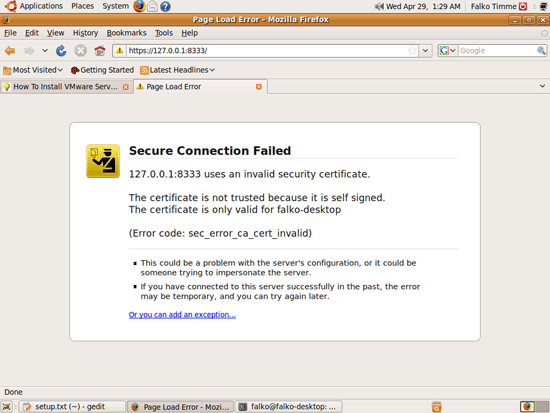
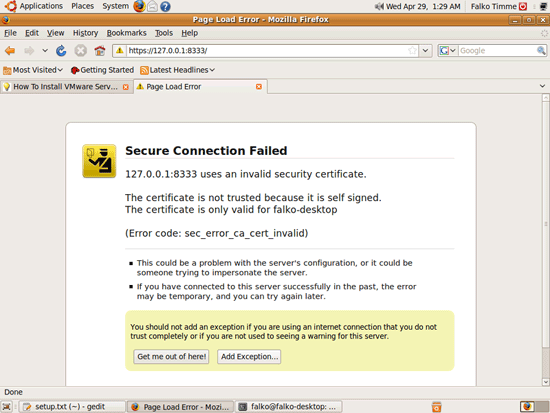
If you're using Firefox 3 and use HTTPS, Firefox will complain about the self-signed certificate, therefore you must tell Firefox to accept the certificate - to do this, click on the Or you can add an exception... link:


Click on Add Exception...:


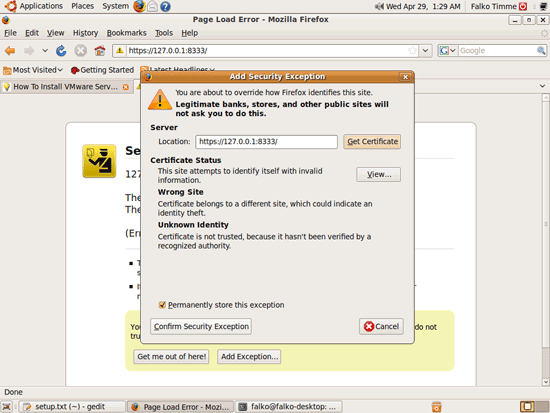
The Add Security Exception window opens. In that window, click on the Get Certificate button first and then on the Confirm Security Exception button:


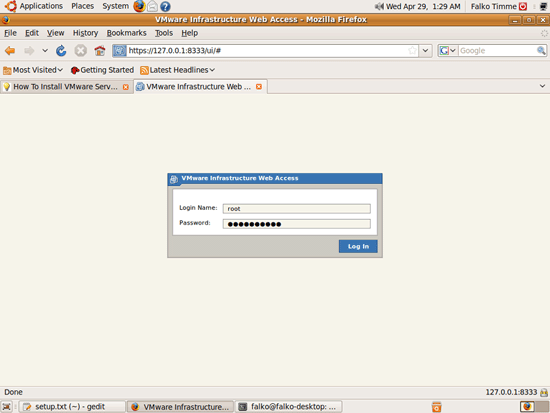
Afterwards, you will see the VMware Server login form. Type in root and the password you've just created:


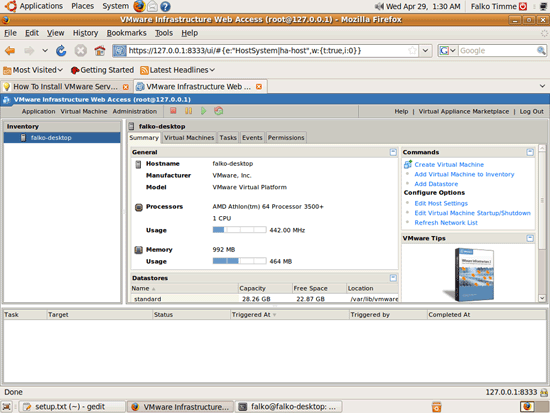
This is how the VMware Server web interface looks. The structure is similar to the old VMware Server 1 desktop application, so the usage of the web interface is pretty straightforward.


Technorati : , , , ,

Del.icio.us : , , , ,

Zooomr : , , , ,

Flickr : , , , ,


A Brief History of Unix

A Brief History of Unix

This article will give people with no previous UNIX experience some sense of what UNIX is. This article will cover the history of UNIX and an introduction to UNIX.

HISTORY OF UNIX AND CAUSES FOR ITS POPULARITY

Most discussions of UNIX begin with the history of UNIX without explaining why the history of UNIX is important to understanding UNIX. The remainder of this document will describe some strengths and weaknesses of UNIX and attempt to explain why UNIX is becoming popular. All of UNIX's strengths and weaknesses can be directly related to the history of its development, hence a discussion of history is very useful.

UNIX was originally developed at Bell Laboratories as a private research project by a small group of people starting in 1969. This group had experience with a number of different operating systems research efforts in the 1970's. The goals of the group were to design an operating system to satisfy the following objectives:

• Simple and elegant


• Written in a high level language rather than assembly language


• Allow re-use of code

Typical vendor operating systems of the time were extremely large and all written in assembly language. UNIX had a relatively small amount of code written in assembly language (this is called the kernel) and the remaining code for the operating system was written in a high level language called C.

The group worked primarily in the high level language in developing the operating system. As this development continued, small changes were necessary in the kernel and the language to allow the operating system to be completed. Through this evolution the kernel and associated software were extended until a complete operating system was written on top of the kernel in the language C.

UNIX APPLICATION PROGRAMMING INTERFACE

Many proprietary operating systems have a simplified view of application behavior. The typical application reads some data from disk, tape or a terminal and does some processing. Output is produced onto disk, tape, tape, terminal, or printer. The operating systems generally provide easy to use well-implemented facilities to support these types of facilities.

As applications become more sophisticated they need new features such as network access, multi-tasking, and interprocess communications. In traditional operating systems, these features are often hard to use, not well documented, and only callable from assembly language. When a program makes use of these features, the program may be much more complex and much more difficult to maintain.

In UNIX because the C language was written to be used to implement an operating system rather than a traditional "input-processing-output" application, use of these sophisticated features is quite easily done from the C language without writing any assembly language. In addition, the documentation for these sophisticated features is in the same format and location as the documentation for the normal application calls.

When UNIX was distributed, users could write applications in C and easily make use of all of the operating system facilities. This allowed application developers to quickly develop much more sophisticated applications using these facilities.

The pattern of development in UNIX when adding new features such as networking is to provide an application program interface from the C language to access the new features.

In general UNIX system developers and application developers program in the same language using the same application programming interface. In typical proprietary operating systems, the operating systems programmers are programming in assembly language and have access to a many capabilities which are not available to the application developer.

UNIX NETWORKING

In 1984, the University of California at Berkeley released version 4.2BSD which included a complete implementation of the TCP/IP networking protocols. Systems based on this and later BSD releases provided a multi-vendor networking capability based on Ethernet networking.

The networking support included, remote login, file transfer, electronic mail, and other important features.

As UNIX was ported onto more and more different types of computer hardware the UNIX networking allowed many different types of systems to share and mutually use data. Networks consisting of many different systems could be used as a large distributed system.

When SUN Microsystems added NFS (Network File System), this ability to share and mutually use data was significantly enhanced.

UNIX POPULARITY

At this point, the reader might be asking, "This document is designed for first time UNIX users. Why all of this discussion about programming and system programming?" The answer is because the document is using the history of UNIX to explain why UNIX is so popular. The application portability and system programming issues have caused many hardware and software vendors to choose UNIX.

The effect of many vendors choosing UNIX is that there is a wide variety of UNIX systems available to users at attractive prices. There are three primary causes for UNIX's popularity (and none is user interface):

• Only a very small amount of code in UNIX is written in assembly language. This makes it relatively easy for a computer vendor to get UNIX running on their system. UNIX is nearly the unanimous choice of operating system for computer companies started since 1985. The user benefit which results from this is that UNIX runs on a wide variety of computer systems. Many traditional vendors have made UNIX available on their systems in addition to their proprietary operating systems.

• The application program interface allows many different types of applications to be easily implemented under UNIX without writing assembly language. These applications are relatively portable across multiple vendor hardware platforms. Third party software vendors can save costs by supporting a single UNIX version of their software rather than four completely different vendor specific versions requiring four times the maintenance.

• Vendor-independent networking allows users to easily network multiple systems from many different vendors. These features of UNIX have contributed to its rise in popularity since the mid 1980's

USER INTERFACE

So far, there has been no mention of the user interface for UNIX. UNIX is a good operating system for experienced programmers. The operating system was designed and implemented by experienced programmers so everything which the experienced programmer needs is present but not much else. A perfect example of this is the on-line documentation called "man-pages" or manual pages. The material is completely reference oriented with very little tutorial information. Experienced programmers find the man pages


very useful but the beginning user often finds them overwhelming.

In the last few years, there has been extensive work to improve the user interface to UNIX. The most dramatic effort has been the addition of windowing interfaces on top of UNIX such as X-windows, Suntools, NextStep, Motif, OpenLook, etc. These windowing interfaces do not change UNIX itself but are built on top of UNIX to provide a more intuitive interface to UNIX. Each of the different user interfaces has some advantages and some disadvantages. Currently intensive development effort is being done on all of these Graphical User Interfaces (GUIs).

Vendors providing UNIX also have done a work to improve the user interface of their particular versions of UNIX for users without windowing interfaces. Even with all of these efforts, UNIX is weak in the end-user interface area.

USER PORTABILITY

Even with a relatively poor user interface, UNIX has a following of non-programmer users. The primary reason for this is because UNIX runs on so many different computer systems ranging from small desktops to the largest computers in the world. Once a user has learned UNIX, the skills can be used on many different systems. This ability for a user to work on many different makes of computer systems without re-training is called "user portability".

Many users of other operating systems have converted to using UNIX because they felt that UNIX would be the "last" operating system they would have to learn.

OPEN SYSTEMS

There is a recent effort to define what is an "open system" in the international standards area. An open system is a system which allows application portability, system interoperability, and user portability between many different computer vendor hardware platforms.

UNIX is a good example of the advantages to the user having an "open system".

HISTORY SUMMARY

From a simple beginning as a personal research project to an important role in the operating systems on a wide range of computer systems from desktop micros to the largest mainframes, UNIX has and will have a lot of impact. The strength of UNIX is its portability across multiple vendor hardware platforms, vendor independent networking, and the strength of its application programming interface.

These benefits are so strong that the relative weak end-user interface has not slowed the adoption of UNIX.

The end users are not the direct beneficiaries of the portability and the application program interface. However end-users have already seen the dramatic drop in the cost of computing when multiple vendors can provide the same operating system and software solutions.

End users are currently making the choice for inexpensive and flexible computing rather than best user interface in choosing UNIX.


Technorati :

Del.icio.us :

Zooomr :

Flickr :